Texture Wrapping Tutorial

Tutorial / 04 May 2019

Introduction

In this tutorial I want to show you how to use our textured base meshes to quickly and easily texture any full body model using a combination of Zbrush and Wrap3. For this example I am using another 3D scan from our Classical female body pack however this technique will apply just as easily to any character sculpt or model created in any software.  


Essentially what we are going to do is transfer not just the texture but also the mesh / UV map and high resolution skin details from our textured base mesh onto the untextured non UV mapped female 3D model shown in the image above. For the purposes of this tutorial we will be using Zbrush but that's not to say that the techniques shown here don't apply to other sculpting / modelling software such as Blender, Mudbox, 3D Studio max or Maya. 

First we need to export our untextured sculpt as an OBJ file, this will allow us to import it into Wrap 3, in this example I exported the model at subdivision level 3 which was around 200,000 polygons, we don't want to go too high with the poly-count, firstly there isn't actually any reason to go to a higher poly count that the base mesh as you cant transfer those details to a low poly base and secondly we don't want to bog wrap 3 down with unnecessarily large 3d models.


We will also need to export the scan store textured base mesh at Subdivision level 1. we could export a higher level two or three mesh but as I mentioned before we its not really necessary at this stage and will only slow things down, we can come back to Zbrush later and re-project the finer details after the wrapping process.
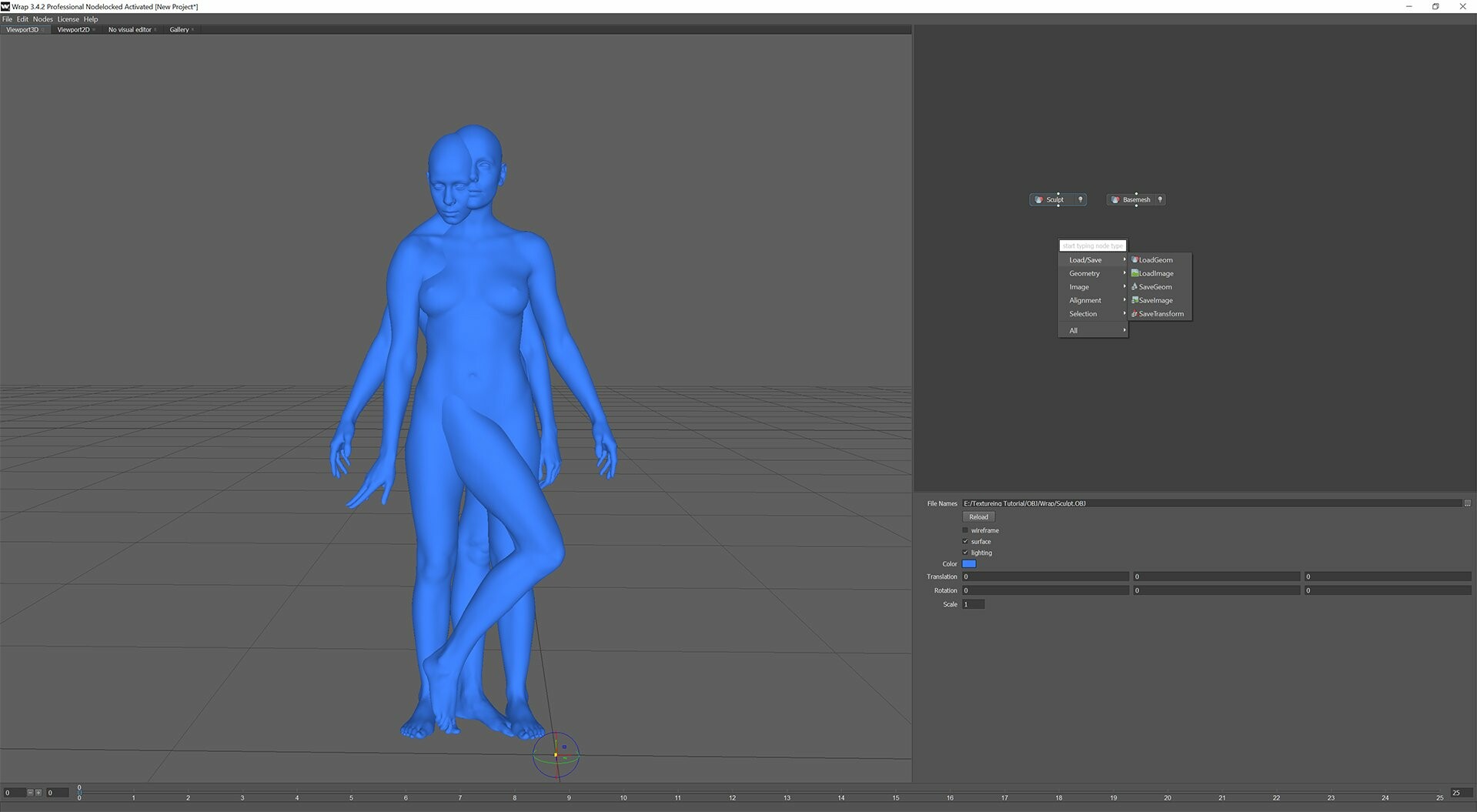

It's time to load up wrap 3 and import both our original sculpt and the textured base mesh model that we exported previously. Simply hover your mouse over the grey area on the right and hit the "Tab" button now scroll down to "Load/Save" and select the "LoadGeom" node once the node is visible on the screen click and load the base mesh OBJ into the "File Names" tab in node options, do the same of the sculpt mesh.


At this stage its a good idea to apply the supplied texture to the base mesh, for this example I'm using the 8k JPG version that comes with the base mesh (there is also a 16k PSD) as I don't want to bog things down with huge textures. To load the texture map simple hit "Tab" again and go to to "Load/Save" and select "LoadImage" now select the "Female_Base_Colour.jpg" File in the "Textures>JPG" folder. Adding the texture map at this stage allows for better placing of points as we can use the texture as reference rather than just the low resolution geometry.


We're nearly ready to start the wrapping process, lets add the "SelectsPoints" node by hitting "Tab" and selecting "Selection > SelectPoints" Before we begin selecting the wrapping points make sure you are  in the "Visual Editor" and I would also advice enabling the "Sync Views" option on the SelectPoints node, this will rotate and zoom both models in unison and makes place points a lot easier. In some cases you will need to turn it off, for example when hands are in completely different positions.

The above video shows the points selection process, The most important areas are the face, ears, hands and feet but it pays to take your time here and select as many corresponding areas as possible. Try not to bunch too many points up in one place, particularly on large featureless areas such as the back or the stomach.

Because our base mesh has eye sockets and a mouth bag its a good idea to use the "SelectPolygons" node to remove them from the wrapping process. Selecting these areas can be tricky but in the video above you can see how I use the select loop along with the expand and contract selection tools to isolate these areas. Once selected I then hide the polygons and move onto the next areas, once all the selections are hidden I simply select all the remaining polygons and "unhide all" then invert the selection, leaving me with the only the selected and previously hidden areas.  

You will also notice that I am excluding the toes from the wrapping process, this is because on the original model the toes are fused together so trying to wrap individual toes onto areas like this will probably result in some errors, Id rather just approximate the position using the points and then project and fix them later in Zbrush.


Now it's time to wrap the textured base mesh onto the sculpt. as before add a "Wrapping" node from the "Alignment" menu. For this example we are not going to change any of the default settings as they seem to work perfectly, in fact its very rare that I actually alter these at all.

You can see the wrapping process taking place in the video above


Now if we switch between the sculpt and the new wrapped base mesh you can see we have a perfectly retopologised textured version of the original.


Create a "SaveGeom" node and export the base mesh model as "Wrapped Mesh.obj" or something to that effect. Don't forget to click the "Compute current frame" button.


Now its just a case of replacing the lowest subdivision level of the base mesh with the exported wrapped model. All we have to do is make sure the base mesh model is set to its lowest SubD level and the hit the "import" button and select our new model.


Because we only deformed the lowest subdivision level of the base mesh you will notice that when you move up the SubD levels that a lot of the detail from the previous base mesh model is still there. What we need to do now is transfer the higher resolution details from the sculpt onto the new base mesh by using the projection tools in Zbrush. Before we begin projecting its a good idea to save a morph target on the level that you intend to work on. In the case of the video above I'm doing most of the projection work on Level 4. The reason for the morph target is to quickly and easily clean up projection errors by using the morph brush to morph back to the original subdivided wrapped shape, which for areas such as under the arms and between the fingers is pretty accurate. So once the morph target is saved hit the "project all" button in the "Subtool > Project" pallet, I usually use the zbrush default distance setting of around 0.02 but you can mess around with this to get better results. Once the project is completed select the "morph brush" and use it to fix any projection errors in the areas as shown in the video above.

You might notice that for the toes I morph them back almost to their original wrapped state, this is because I thought the toes on the original base mesh were actually better than the ones on the scan / sculpt so decided to keep them rather than project the sculpt details.


We are left with a fully textured, UV mapped version of our original sculpt. 
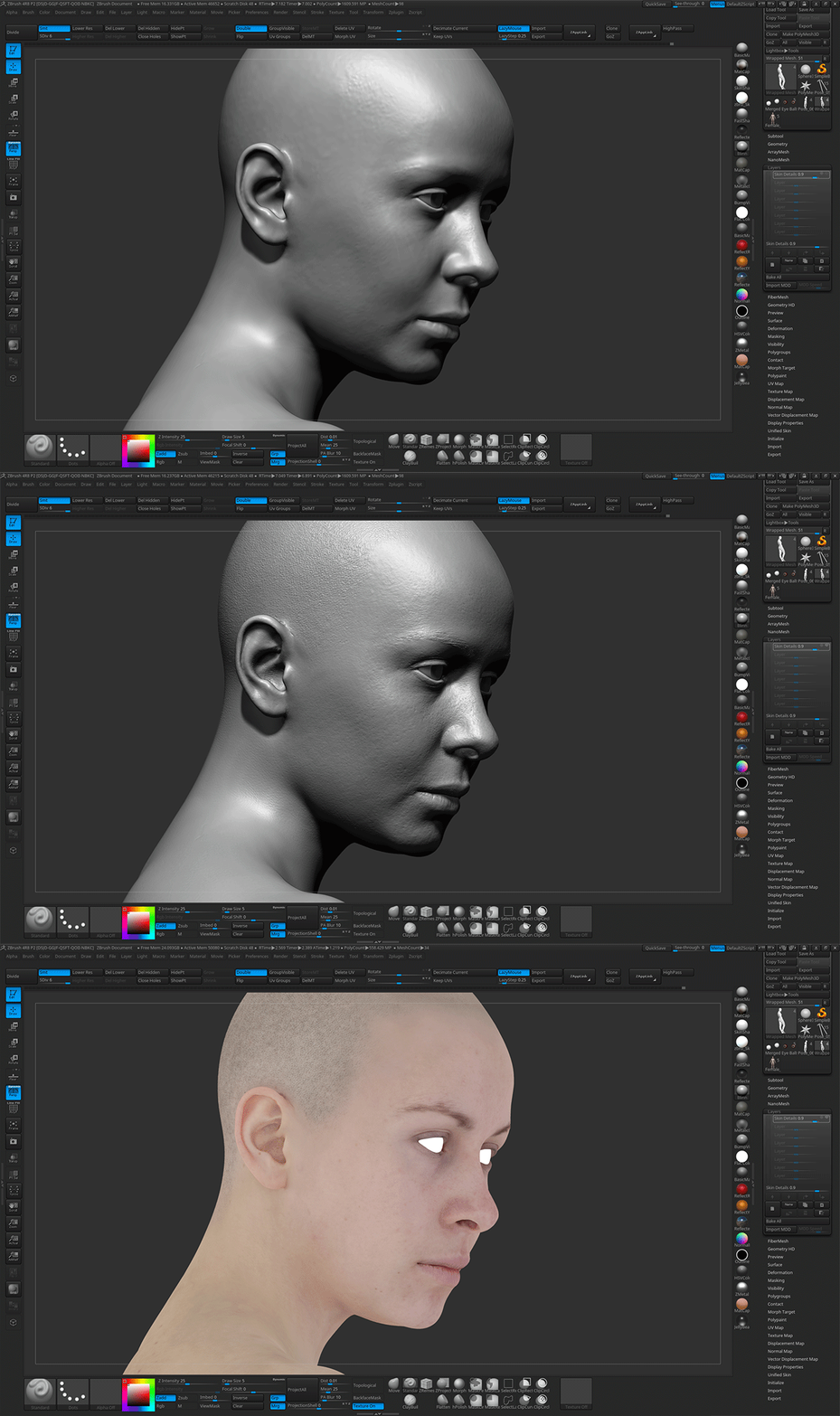
Because our base mesh comes with a Layer containing all the high resolution skin and pore details, once the wrapping and project stage is complete we can simply switch it one, these details will match exactly to the texture and you can control the intensity via the layer slider. If you wanted to adjust the intensity with a little more accuracy you could use the same morph technique as before, saving a morph with the skin details turned on and another with them turned off then simply use the morph brush to define the intensity of the details. 

I feel that I should point out that this is one of two ways in which this process could be done, the second way would be to UV map your own model and then go through the same wrapping process as described above after which you could then project the textures from the base mesh onto your own UV's. This would be a better workflow for people who needed to work with very specific topology and weren't interested in the base mesh topology or UV layout. 

Final Render

Final Render created with Modo 10.1 

Marmoset Toolbag Skin Shading Tutorial

Tutorial / 11 April 2019

Introduction

In this tutorial we are going to look at how to setup a fairly simple skin shader using a 3d scan from our store. For the purposes of this article I’m only going to be focusing on the skin and completely ignoring things like the eyes and hair. I’m going to make this a 2-part tutorial so this will show you the basics of how to setup the shader and the scene as well as create some of the secondary maps such as the gloss and spec. In part 2 I will look more in-depth at tileable micro skin details using TextureXYZ maps.

Assets and software used

Male 45 Head Scan Cleaned - Available here

Marmoset Toolbag 3

Adobe Photoshop

Scene Setup

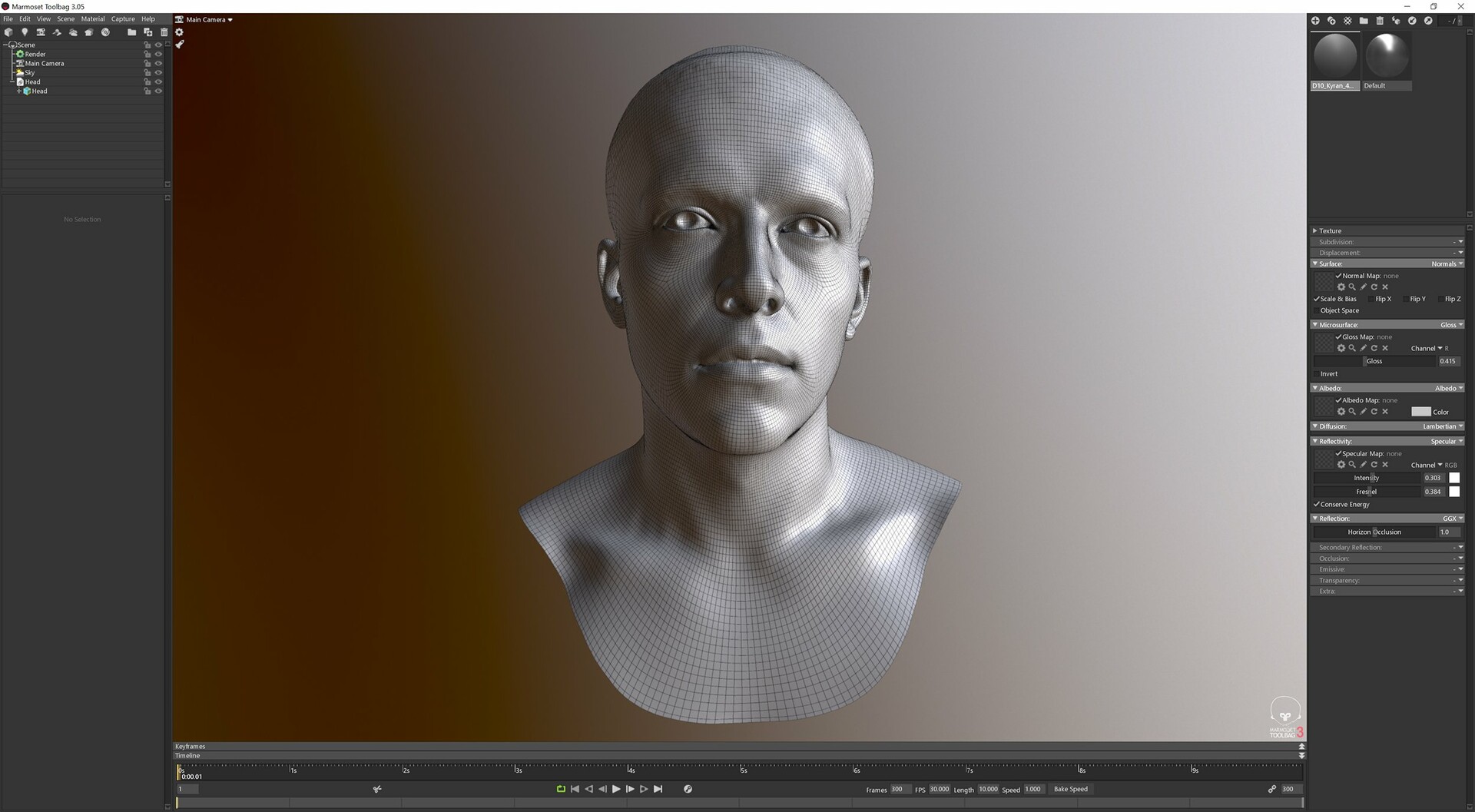
The very first thing we need to do is import our model, File> Import model. For this I like to export an FBX rather than an OBJ from Zbrush because they store normal information and don’t result in unwanted smoothing errors on the mesh.


I like to setup the camera early on, as I've said in previous articles no one likes a horse face and a sure fire way to do that is to have use a 35mm focal distance. I like to set it to somewhere around the 70mm mark which is much more in keeping with portrait photography, you can see the difference this makes in the image below.


Next I’m going to switch on some of the basic global illumination and lighting settings that I like to keep consistent throughout the process. In the "Render" tab enable Lighting>Local Reflections and Lighting>Internal Refraction as well as Global Illumination>Enable and set Voxel Resolution to High. Depending on the specs of your PC the Voxel resolution can have a bit of an effect on frame rate so if it drops too much it might be worth keeping it on medium until you're happy with the results and switching to High for final renders. 


Shading

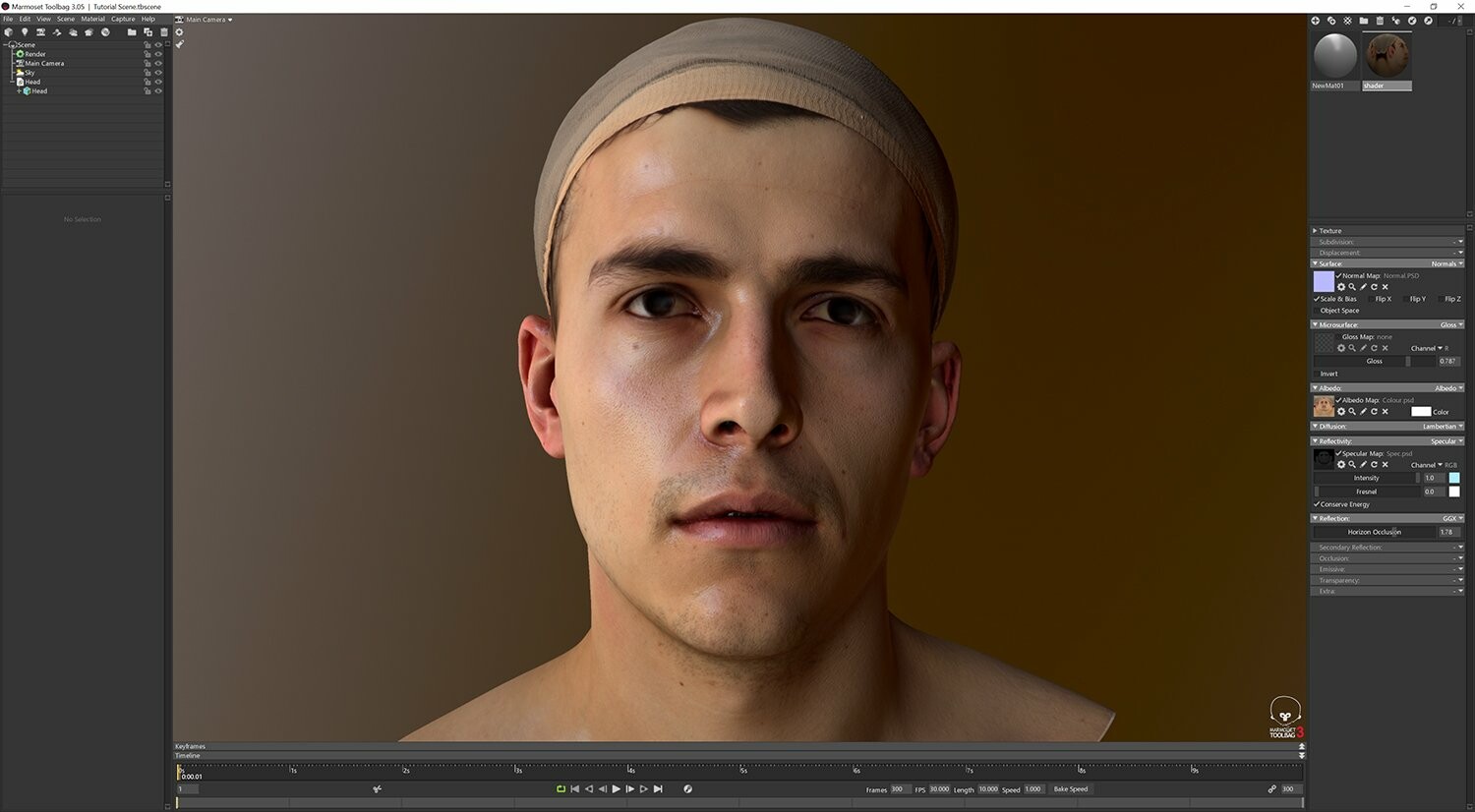
Now that we've more or less setup the scene (more on that later) we can load our 2 basic maps. Normal and Albedo (colour). For this example, I’m using one of our latest head scans available here. The model comes complete with both normal and albedo maps so all you have to do is load them from the directory. If your using your own model then you will need to export your normal map from whatever sculpting package your using for this I will assume Zbrush which will only export a maximum of 8k which suits us fine as that is also the maximum image size that Marmoset will display. It would be great if they would allow for higher resolution maps but for the time being this is the largest image size we can work with.


Now were going to adjust the specular colour to a light blue, there are a few different opinions on this but what we have observed shooting polarised and cross polarised imagery of faces the resulting extracted reflection colour is always a shade of blue, however this could be down to the inability to correctly colour balance polarised imagery due to there not being a colour chart capable of doing this. Either way I like a nice blue hue to the spec so were going to stick with that for the purposes of this tutorial, feel free to change it to something closer to white if you prefer.
 

Specular Map

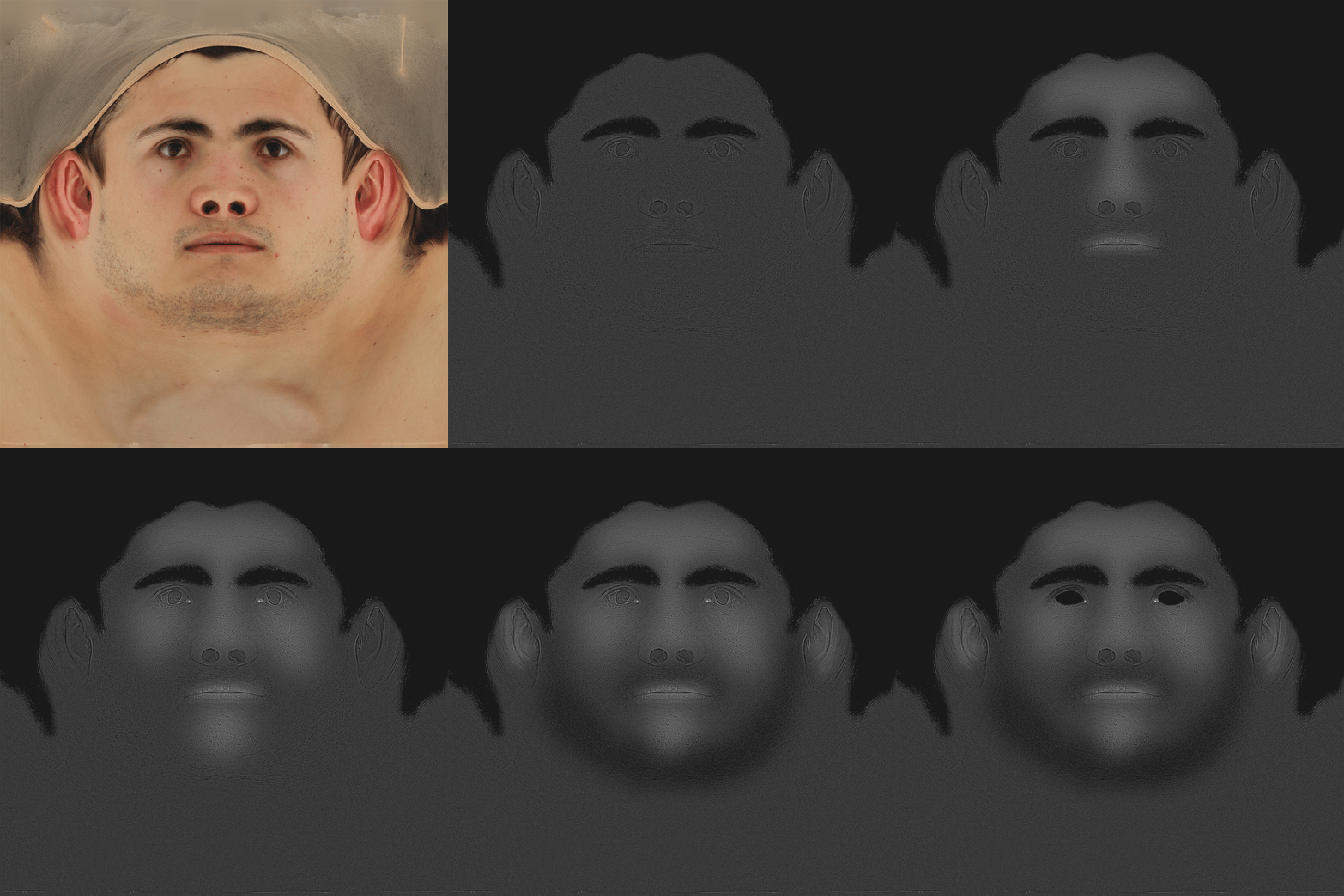
Now its time to create the spec map, I used a fairly standard and straight forward technique to do this. The first step is to de-saturate the images in Photoshop and then simply apply the high pass filter as shown in the image above. After that I used layers to paint on areas in white that re more reflective and areas in black that I don’t want to reflect. You will notice in the image above that I have painted both the hair and eyes completely black. This is obviously not the case in real life but for this tutorial I want to focus almost entirely on the skin. So for the sake of simplicity I’m ignoring these areas. The most important aspect of creating a spec map by hand is painting everything on layers, this means you can easily go back to them and tweak areas that your not happy with in marmoset.
 

And here we have the model with the spec map applied. If after you have applied the spec map you think it looks a little bit too sharp, i.e. the reflection terminates to quickly around a dark areas such as a pore or hair then you can try applying a 1% Gaussian blur to the entire image in Photoshop
  

Sub Surface Scattering


Before we go any further with the specular / reflection shading I think we should take a quick look at the subsurface scatting settings as this can affect to look of reflection and is very simple and to setup in Marmoset. For me there is no hard and fast rule for this, basically whatever looks good. The way I tend to do it is to zoom right in on the face (make sure normal map is applied) and adjust the scatting until the diffuse component of the skin pores almost vanishes, it’s this very computer generated and harsh shadowing of high frequency details that often leads to the sandy dry skin look that you see on a lot of 3d renders. If you were to look at your skin under a microscope you wouldn’t see these kind of harsh shadows on every skin pore as the skin at this level is very translucent and lets a lot of light though diffusing any kind of shadow. I’m not going to touch any of the other settings in the SSS panel I’ve never really be able to use them to any real effect and translucency seems to do weird things with the shadows. The only real map that you might want to consider is the scatter map which defines how deep the scattering is on various areas of the face. However because we are using a scan and all the measurements are accurate in the model specifically skin depth behind the ears and nose a generic value should work for the entire face.


Gloss Map


The next map that we need to look at is the gloss map. This defines areas of the face that are more or less oily which results in tighter highlights. This can be a very simple and very small image if you like, there is no need to define huge amounts of high frequency detail in here just a map to generally define certain areas that will have tighter highlights. Broadly speaking its more or less the same as the spec map with the same facial areas i.e. lips, nose, ears, forehead and eyes picked out as the shiny areas. Again, working with each area on a separate layer in Photoshop is a must for tweak-ability.
 

Lighting

As with everything I’m doing here I want to try and keep the lighting as simple as possible, rather than making a load of images to try and explain how I have set it up I’ve created a quick video that shows exactly how it works. Basically I’m using the standard marmoset cathedral HDR with a single directional light source which I’ve changed the colour to a nice bright white.


Post Processing

To help the image pop a little bit were going to add some simple post processing effects. The first of which is the "Hejl" tone mapping which will give the scene a more cinematic look. Select the camera and scroll down the "Post Effects" and then select "Hejl" from the tone mapping drop down menu. You can also play around with the curves, exposure settings to try and replicate the look but this is a quick and easy way to add a bit more depth to the scene.

Chromatic Aberration

Chromatic Aberration is the effect produced by the refraction of different wavelengths of light through slightly different angles, resulting in a failure to focus and a RGB split. Some refer to it as the modern day lens flair, i.e. over used and not very subtle but for me chromatic aberration used sparingly can add a lot of realism to a real time render especially when combined with Depth of field (below) All I can say about this setting is fiddle with it until it looks right, but don’t be tempted to set it super high as it can look very ugly. 


Depth of Field

Everyone loves a bit of DOF! it help pull everything together and combined with the chromatic adoration gives your renders a nice photographic quality. Make sure you tick on "Sticky Focus" this means the focal distance will always remain the same no matter how much you move the camera in the scene. If your using a mouse you can simply use the middle mouse button to set the focal point or distance as it's called in marmoset.
 

Final Renders

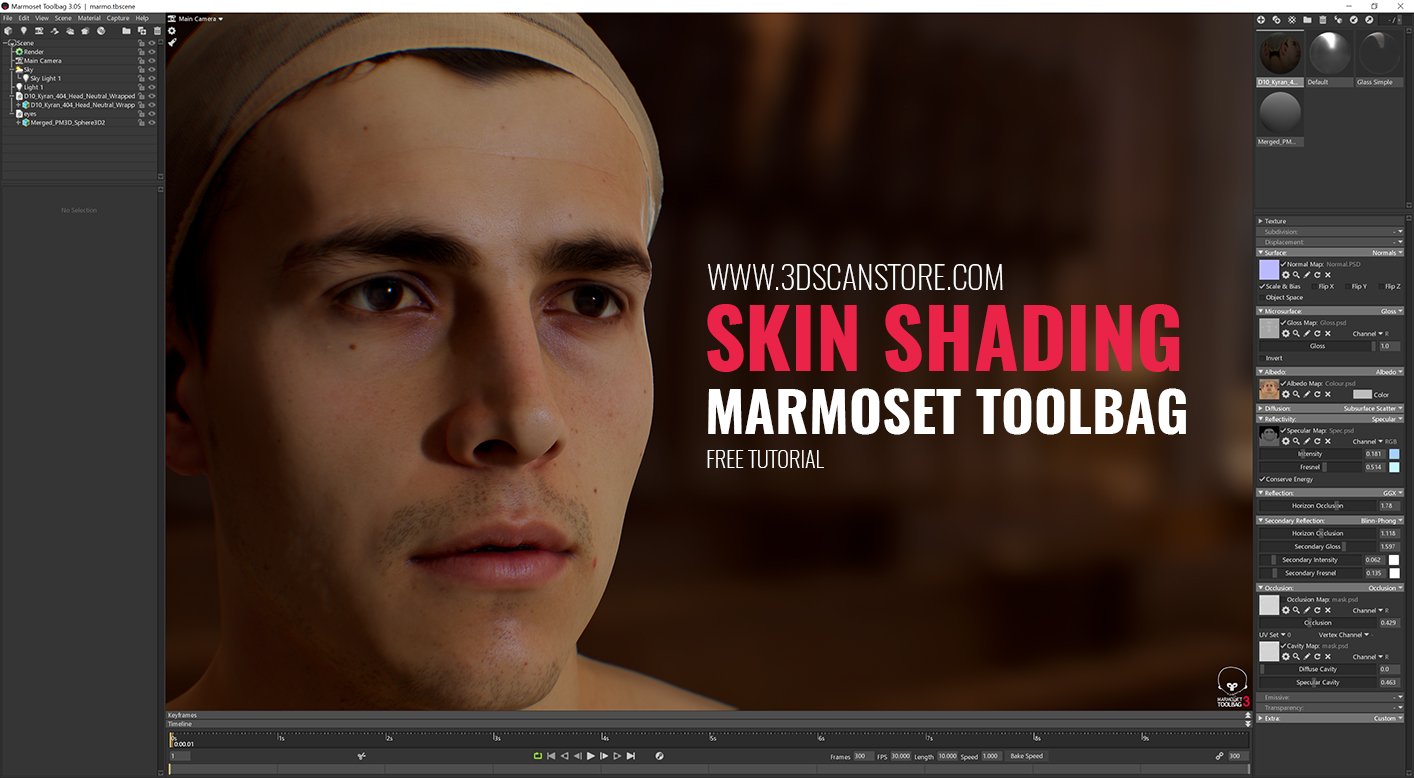
Screen shots captured from Marmoset Toolbag 3 using the high res image capture function "F11"